Registering Your Discrete Trial Trainer (2.0.5 or later)
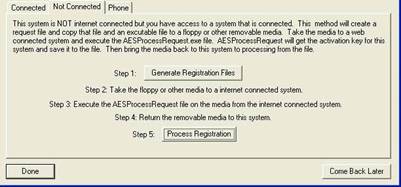
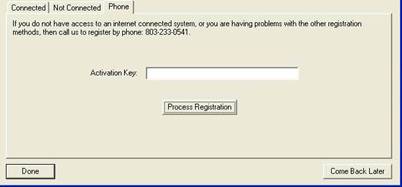
The DT Trainer now has a much simpler internet based registration procedure. The simplest method is for directly connected systems via network or dial up phone line. The directly connected system is the computer where the DT Trainer is installed. If a direct connection is not available but you have access to another computer that is connected, then there is registration option where you will use a removable media like a floppy to complete the registration. Finally there is a phone option for customers that do not have any access to the internet.
To register, follow the steps below. You will need DT Trainer 2.0.5 or later to support this feature. If you do not yet have this version, download the update from www.dttrainer.com/updates.html.
|
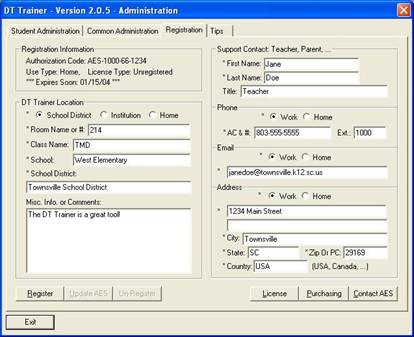
1. Obtain your Authorization Code. This may be on the front cover of your User’s Guide. If you have purchased, and do not have your code, contact AES. 2. Select the Registration tab on the DT Trainer administration dialog. 3. Select your DT Trainer Location (School District, Institution, Home). 4. Complete the Location information. 5. Complete the Support Contact Information. This person should be the teacher, Parent, or other individual actively managing the DT Trainer for the students. Note: All fields with an “*” are required. 6. Click Register. |
|
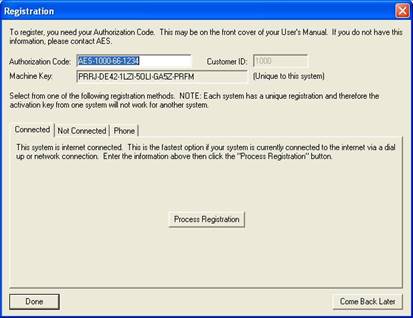
7. Enter your Authorization Code. 8. If you have internet access by a network or dial up phone connection, then use the Connected tab registration option. Click Process Registration.* |
|
9. When you see New Activation Key Accepted dialog, your DT Trainer is registered and ready to use! |
|
10. If your computer is not connected to the internet, select one of the other tabs and follow the onscreen instructions. |
Note: These registration procedures replace those described in the 2.0.0 version of the DT Trainer User’s Guide on pages 3-3 to 3-5.